Managing Participants on Who We Are
How to manage the Participants in the Who We Are section.
Go to dev.ncsfi.org
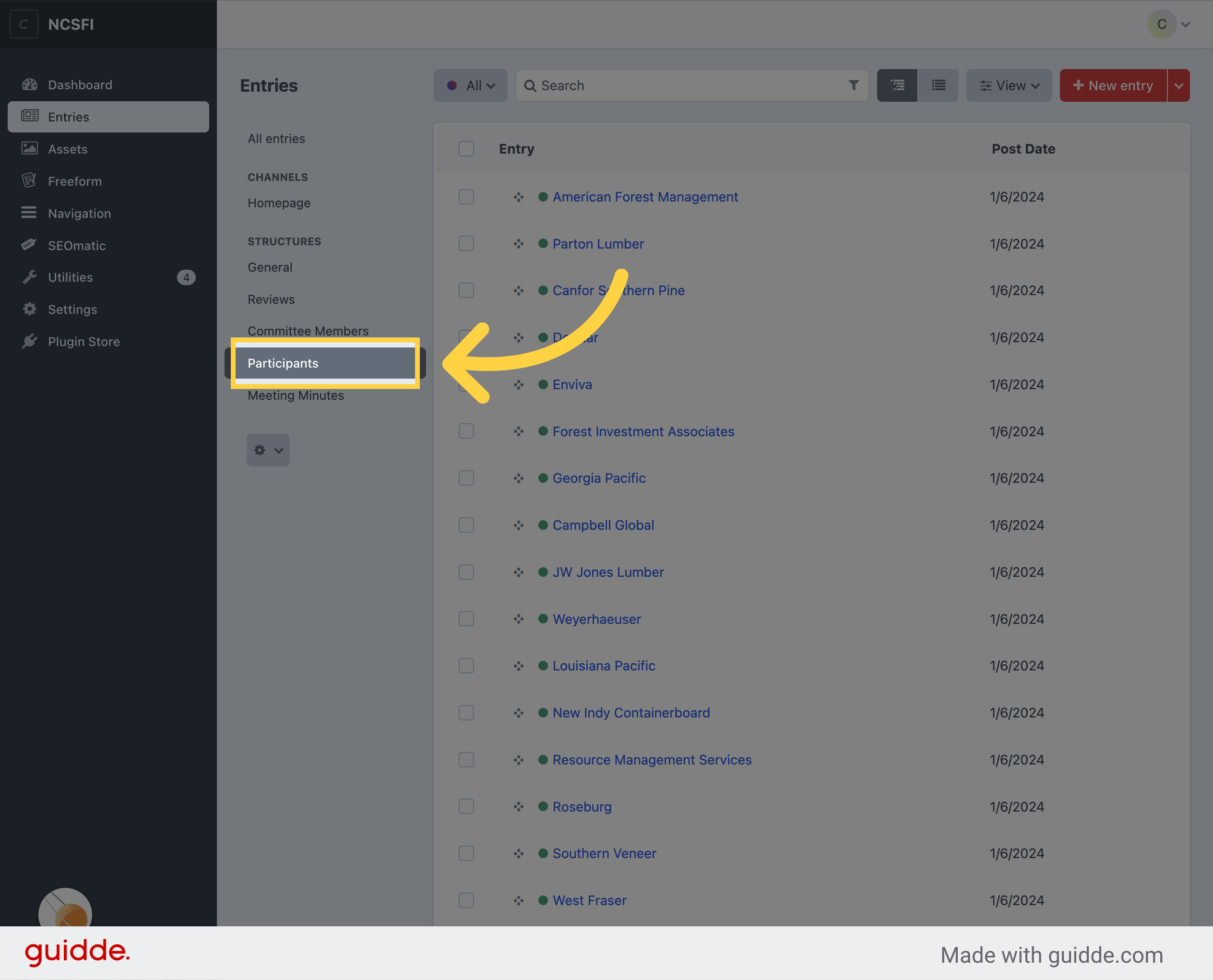
1. Click "Participants"
Access the participant section.
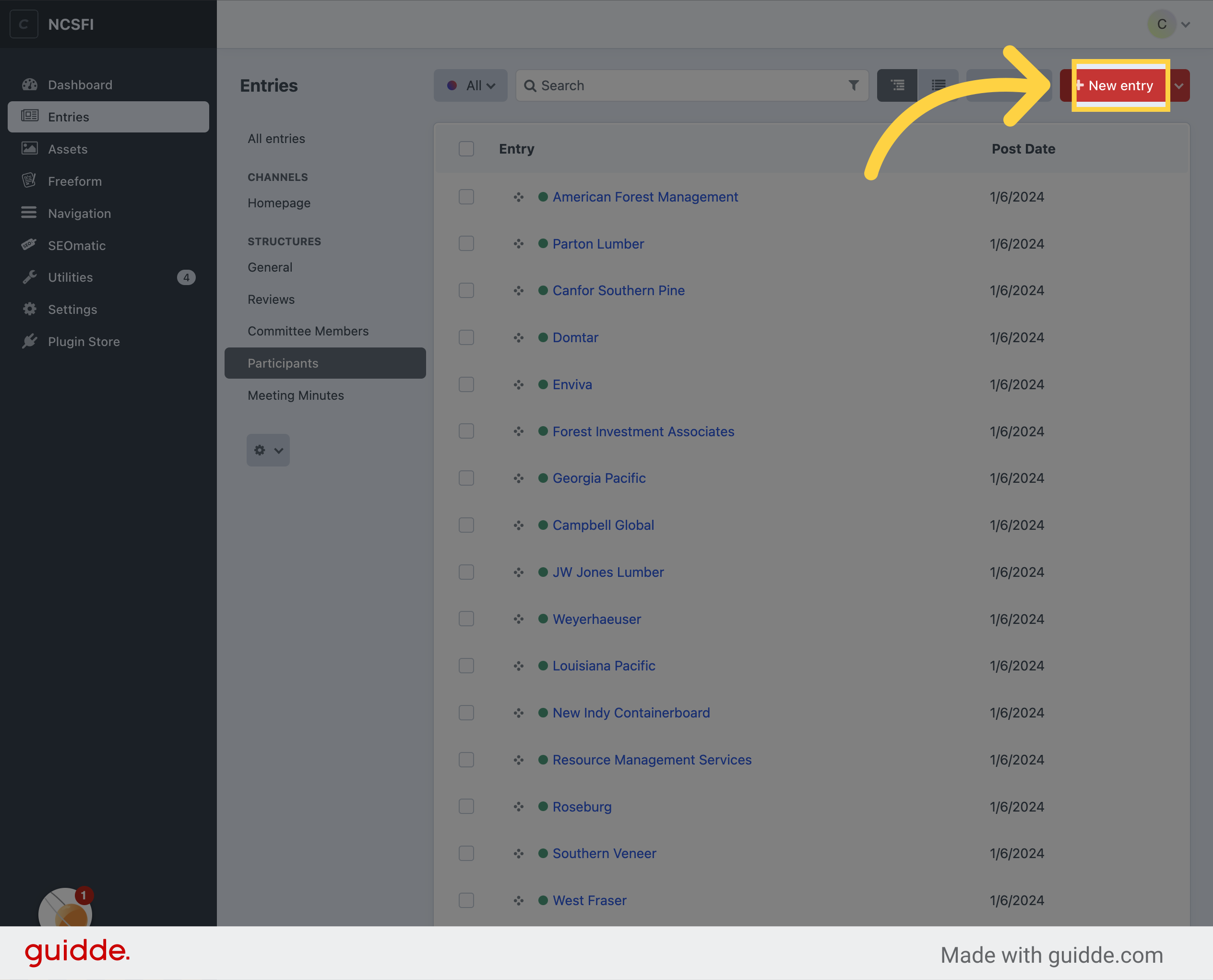
2. Click "New entry"
Start a new participant entry.
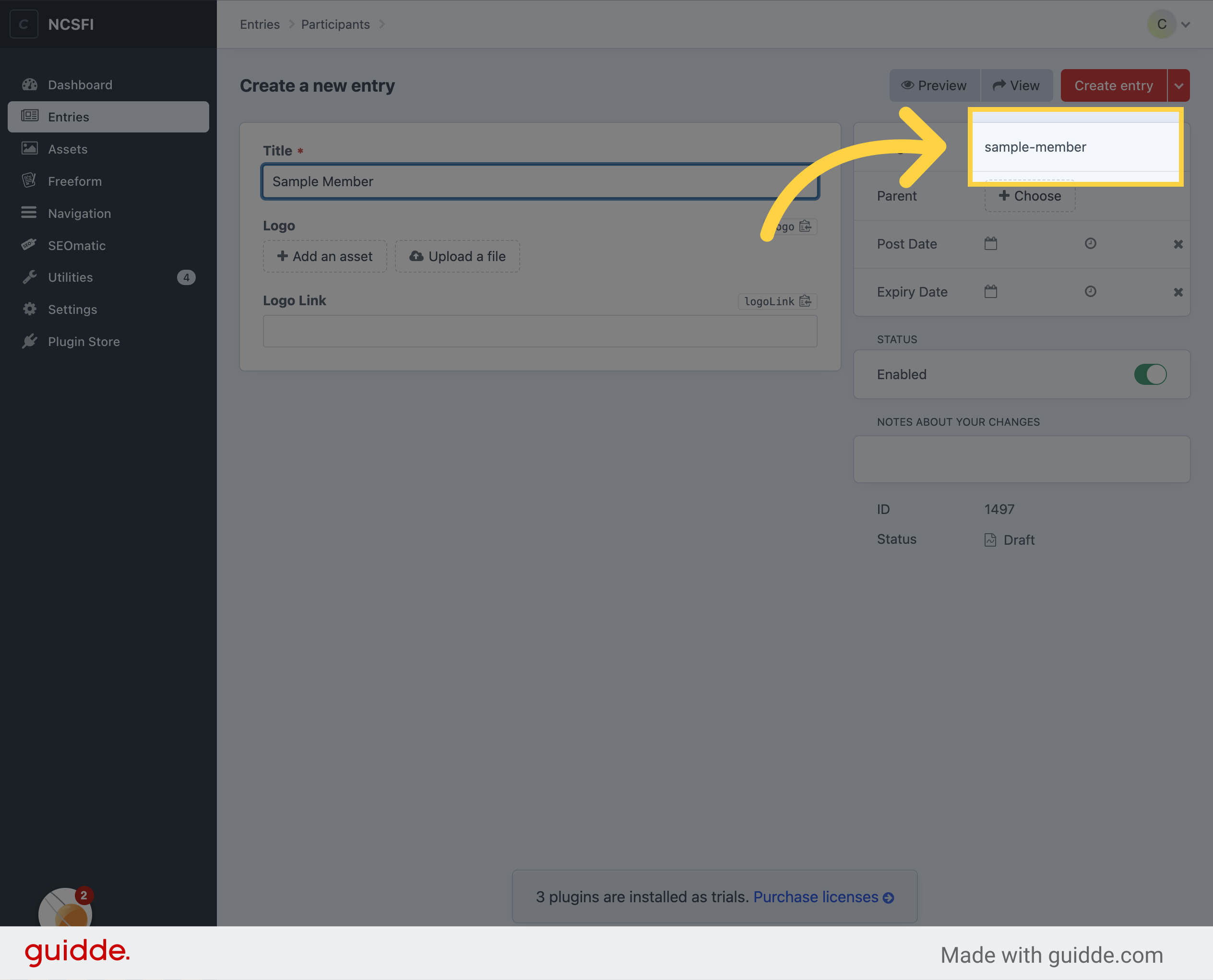
3. Enter Company name
Enter the participant's name.
4. Click "Logo Link"
Click to add a logo.
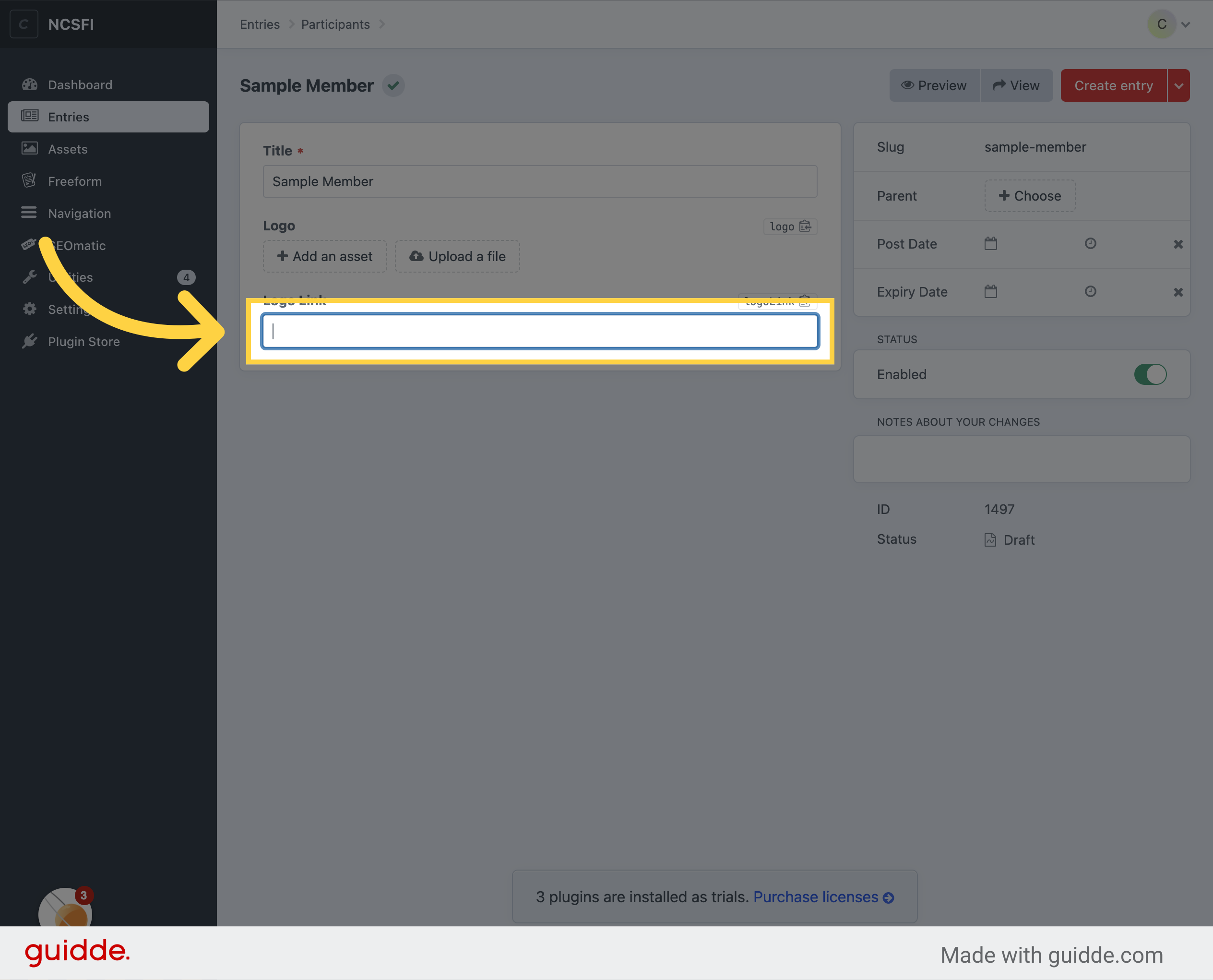
5. Enter Website
Input the participant's website.
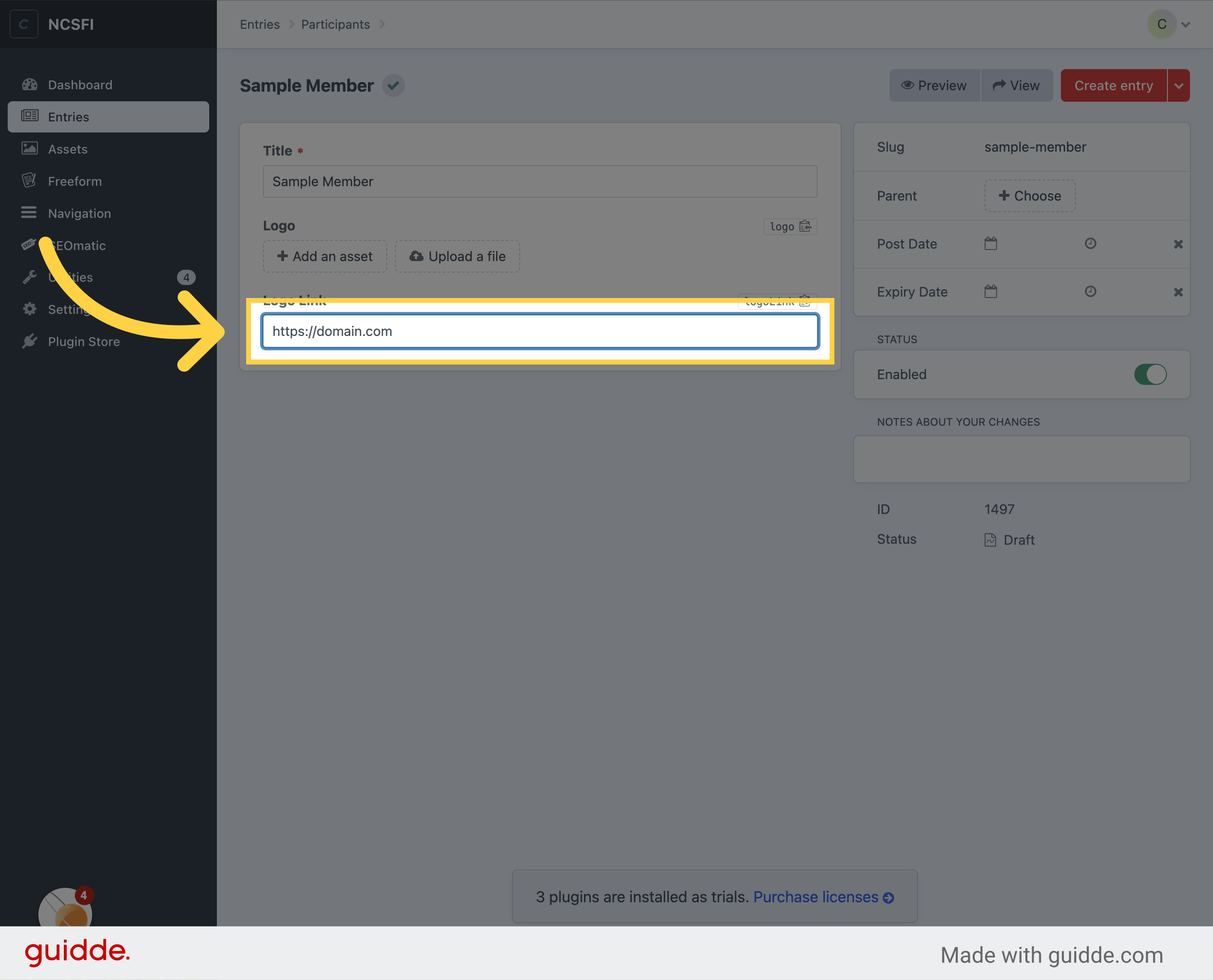
6. Click "Add an asset"
Attach a document or image.
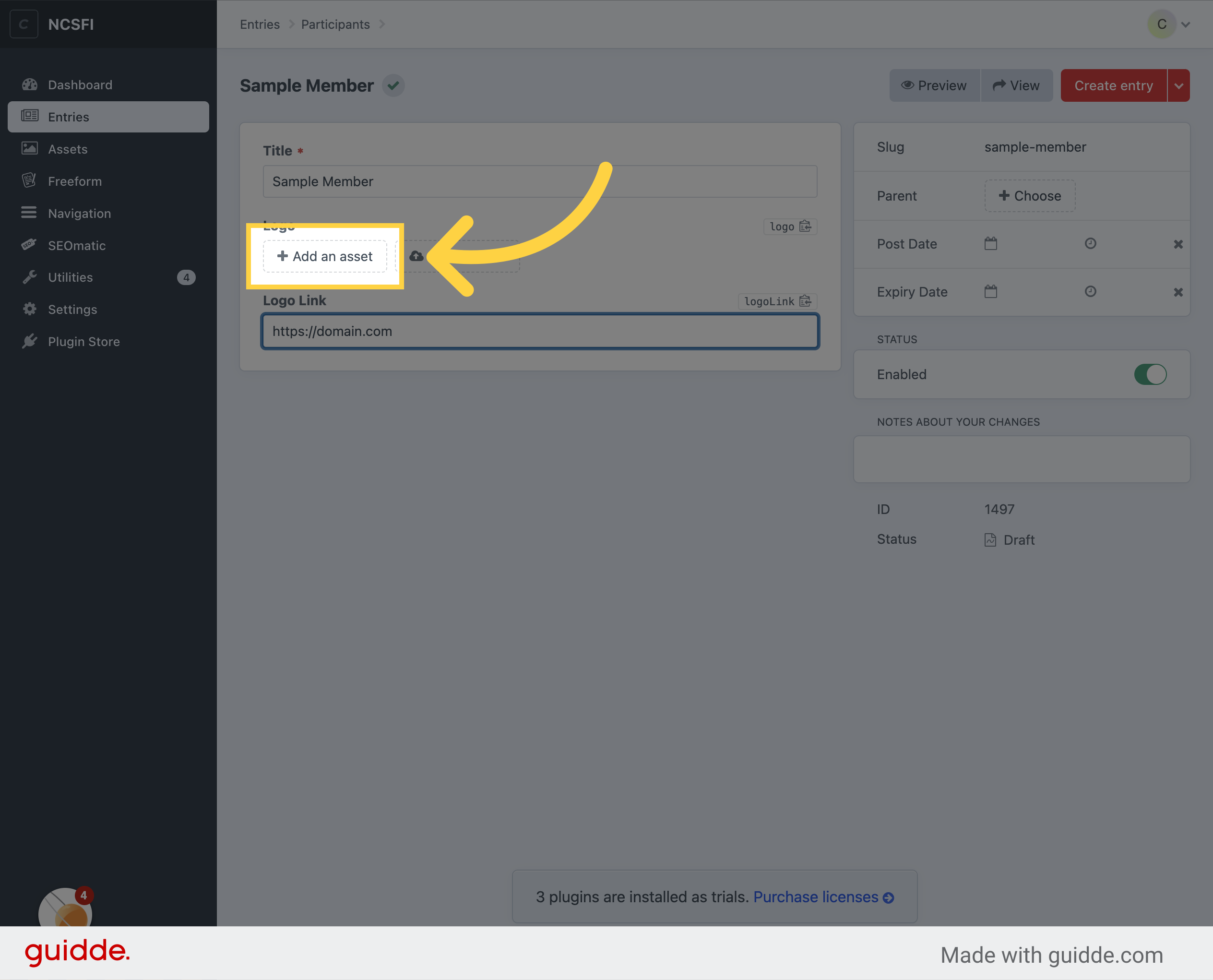
7. Select logo
Select a logo or upload a new one
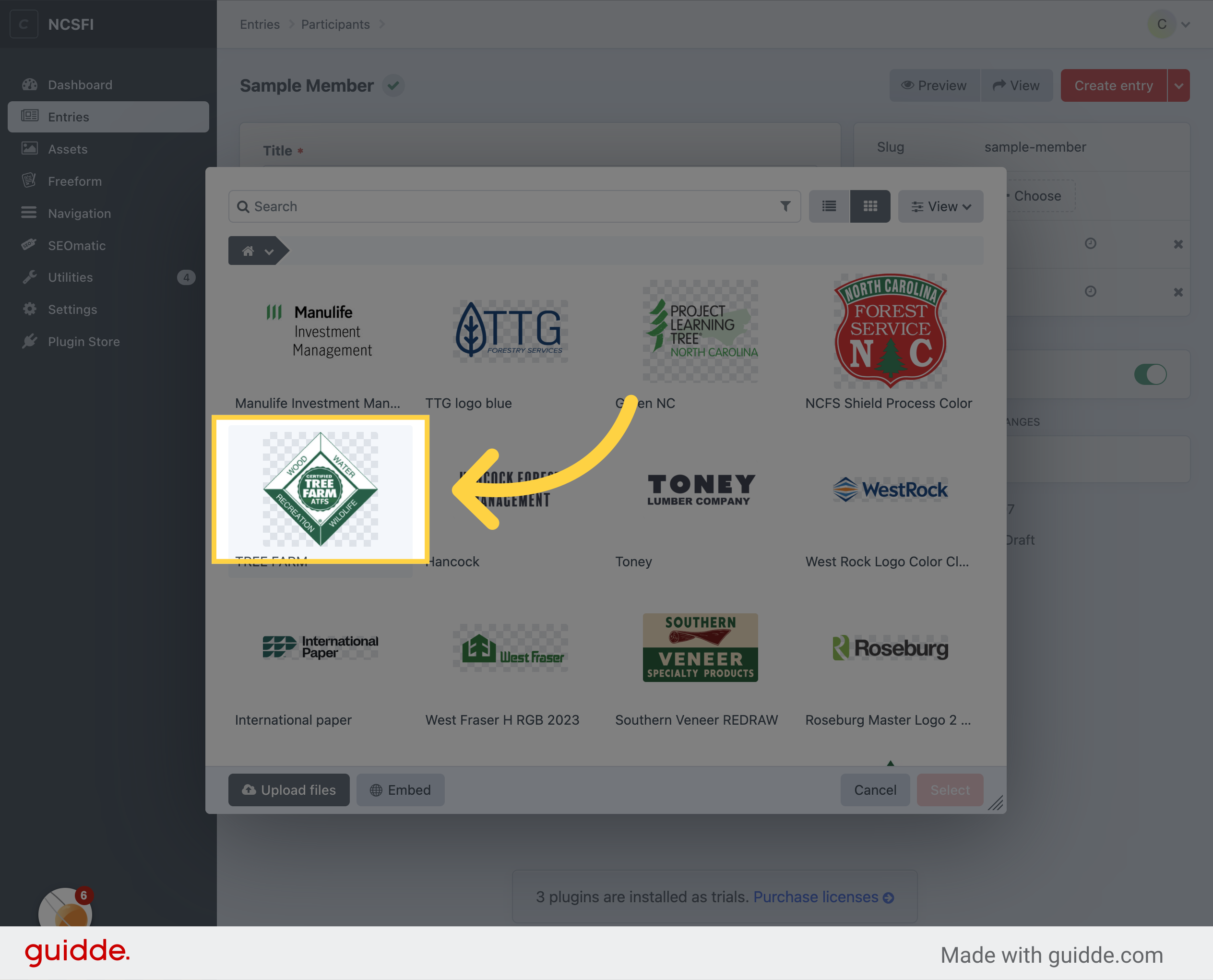
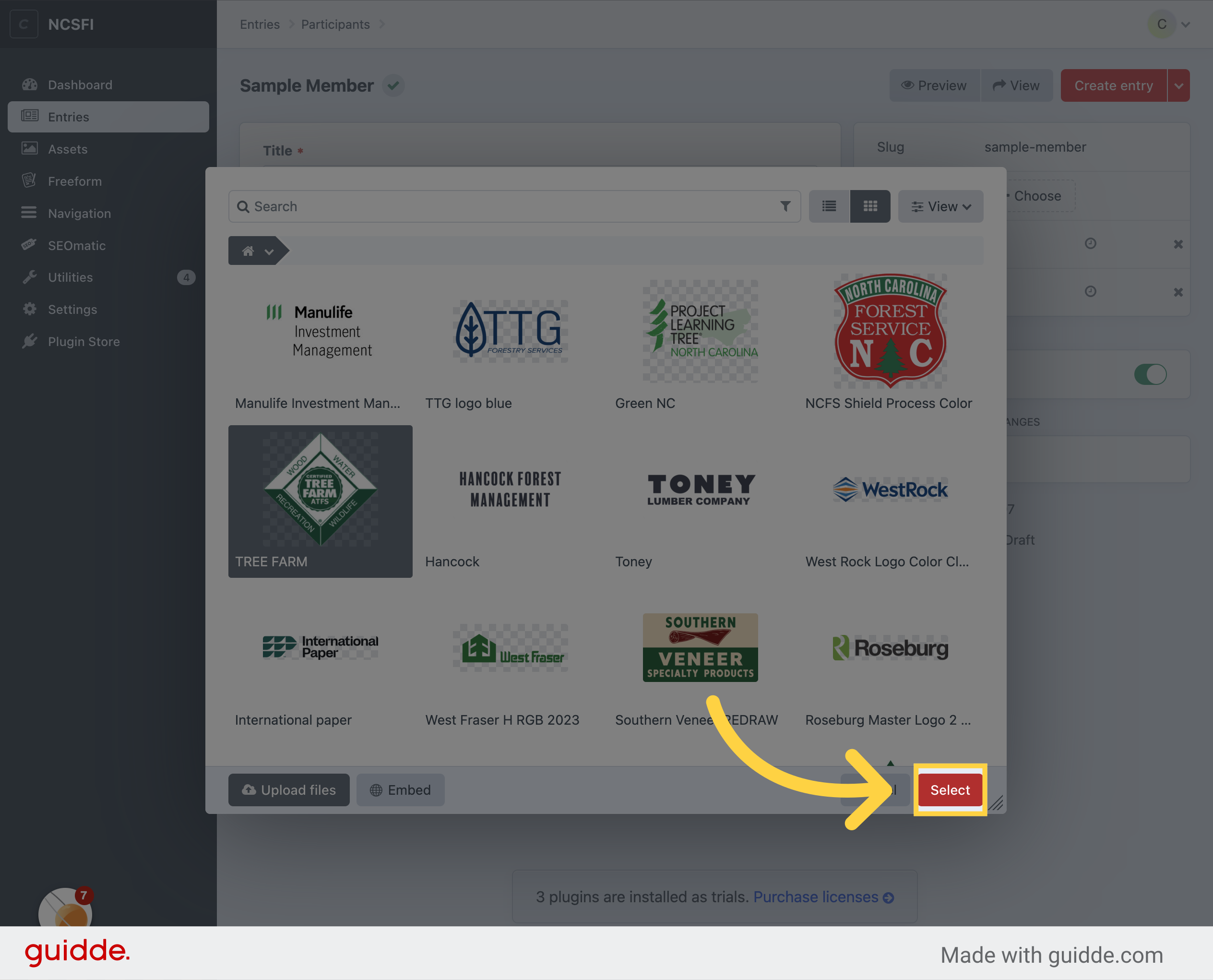
8. Click "Select"
Choose an option.
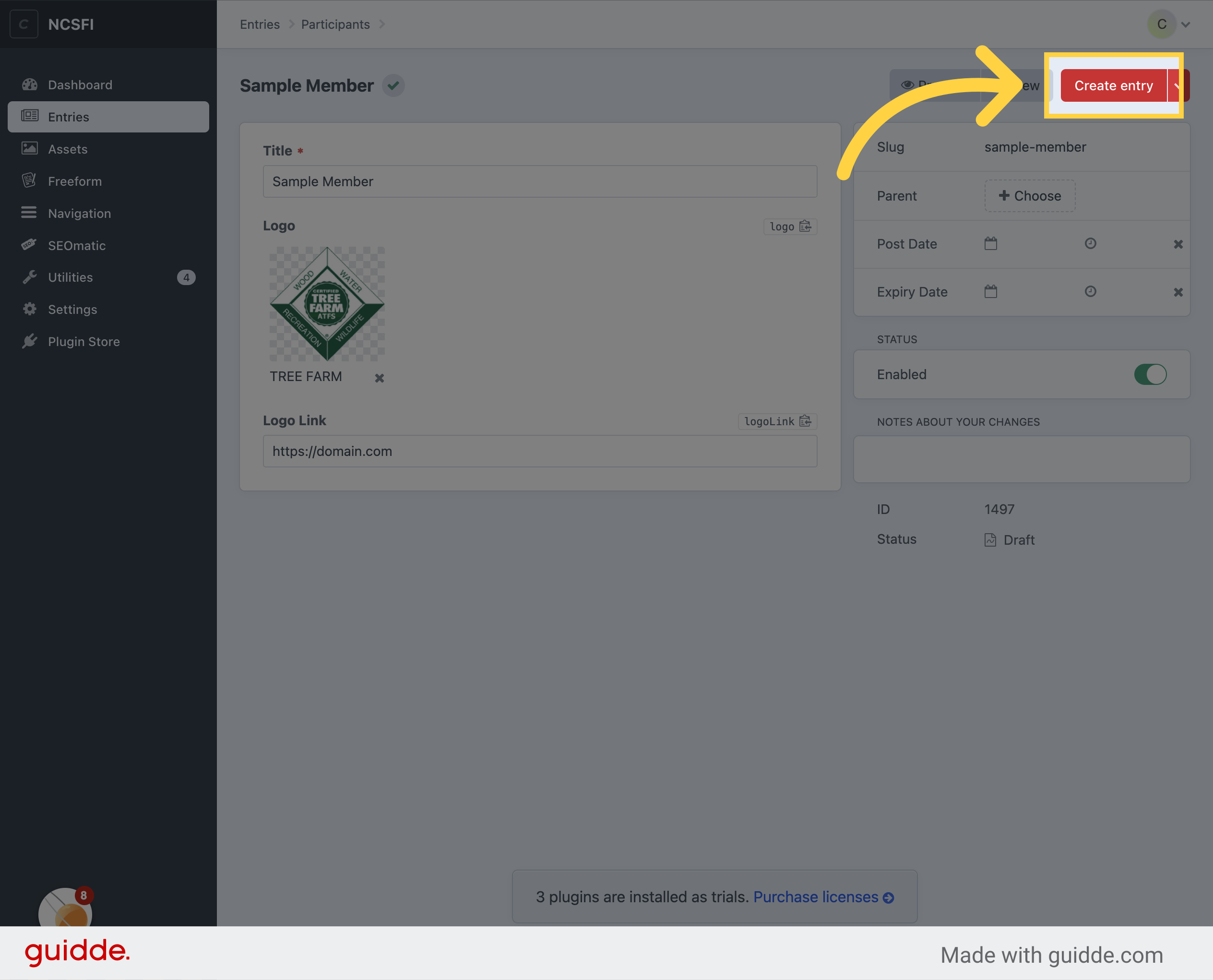
9. Click "Create entry"
Finalize the participant entry.
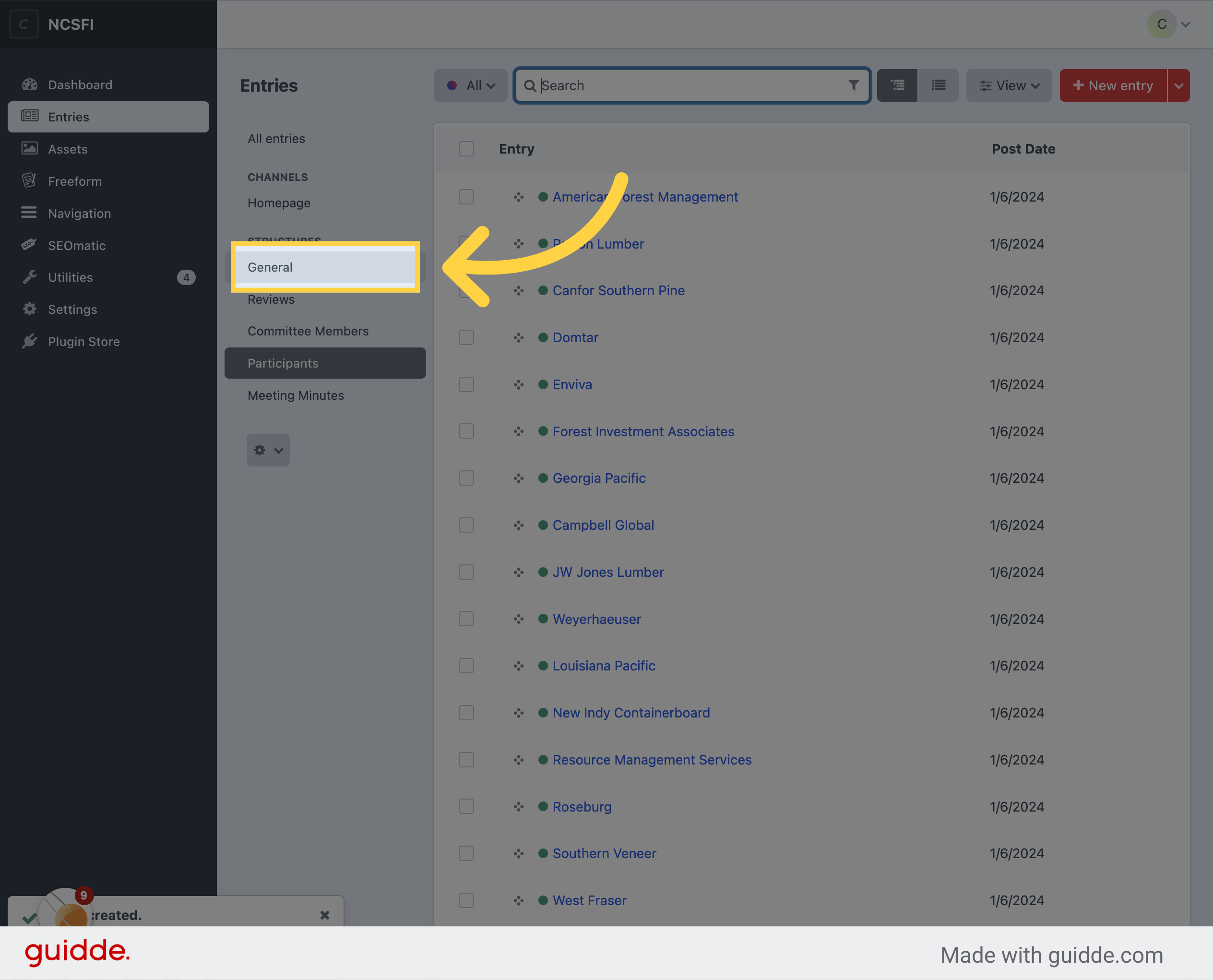
10. Next Add the Logo to the Page
Navigate to the general section.
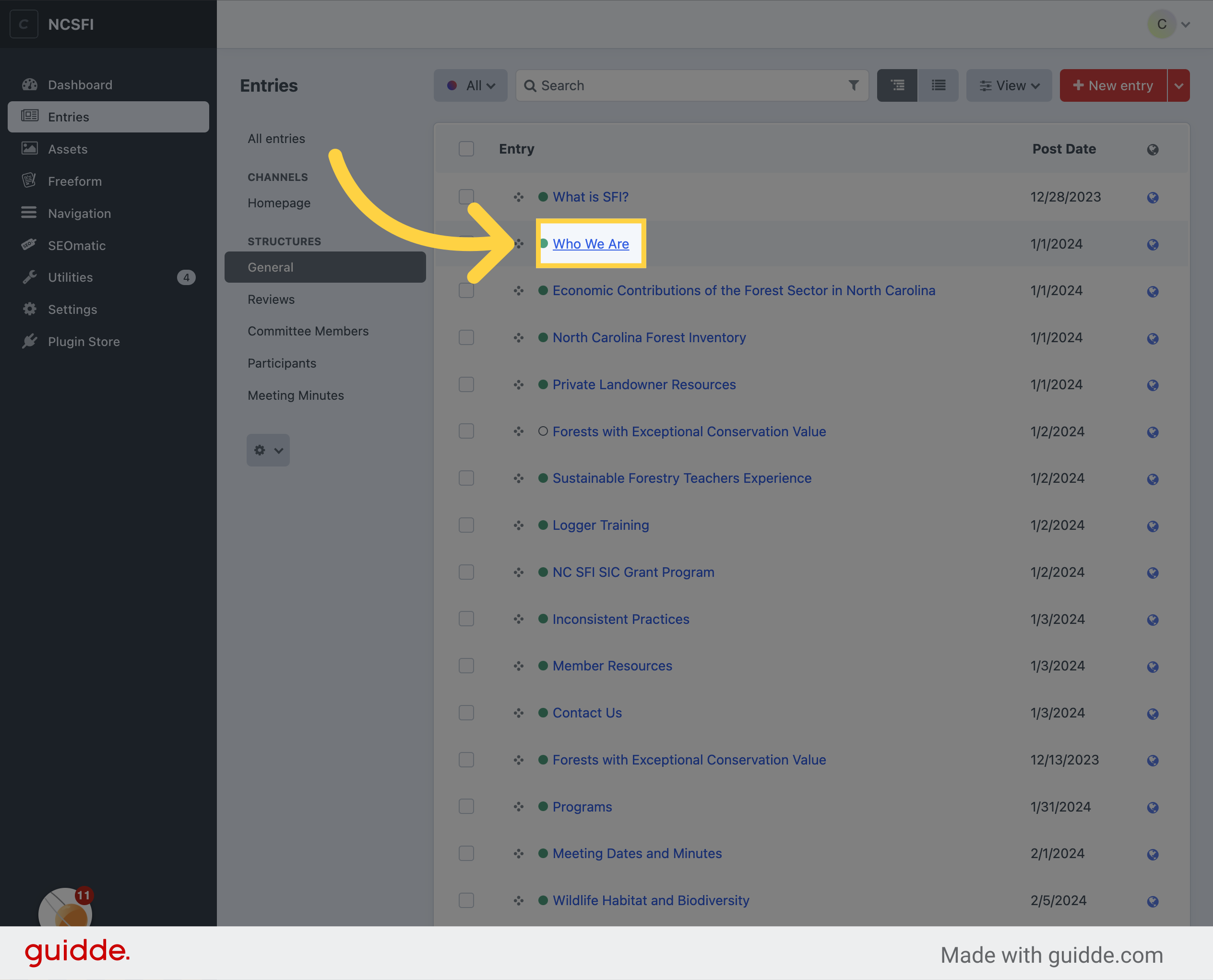
11. Click "Who We Are"
Access the "Who We Are" section.
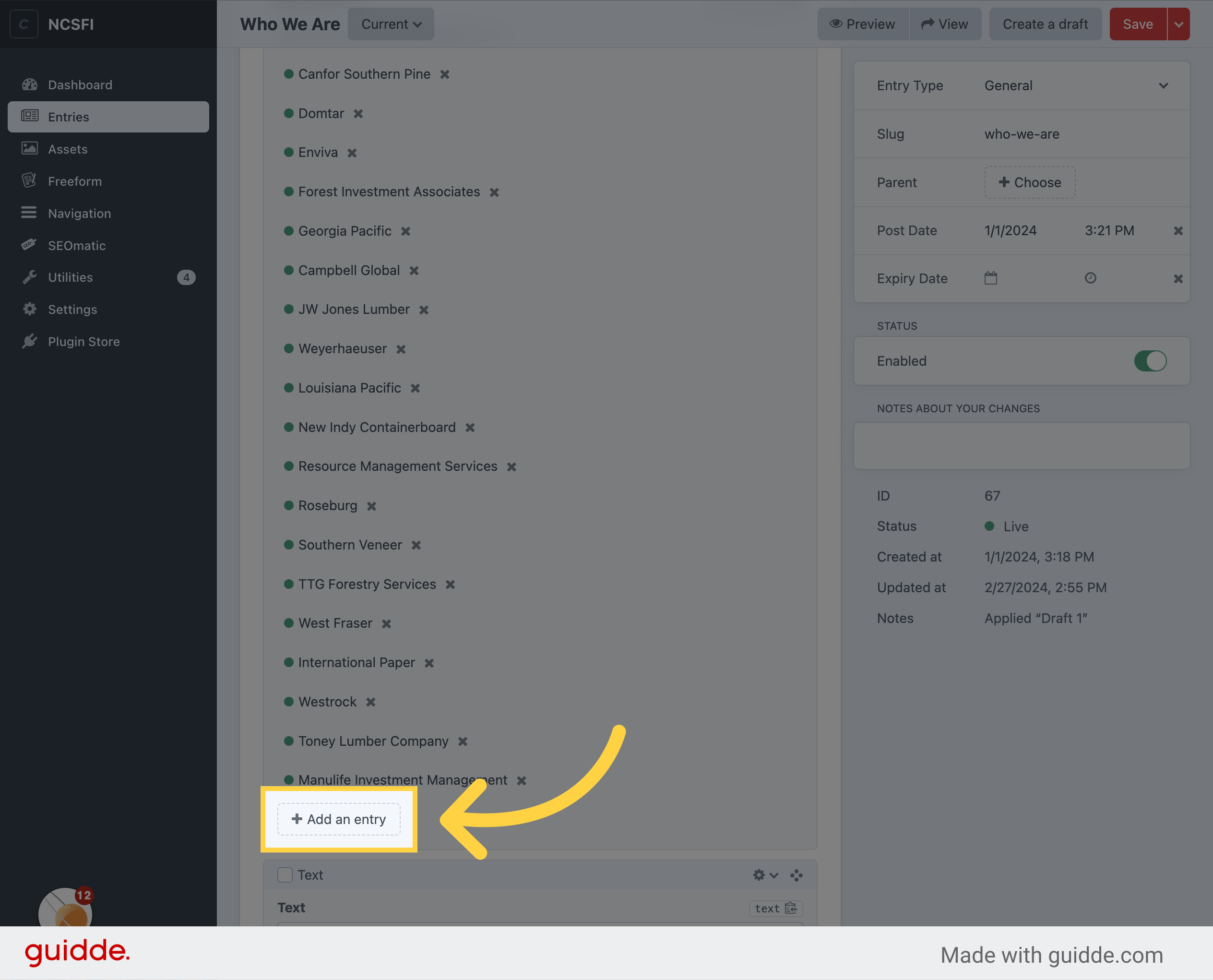
12. Click "Add an entry"
Add a new entry.
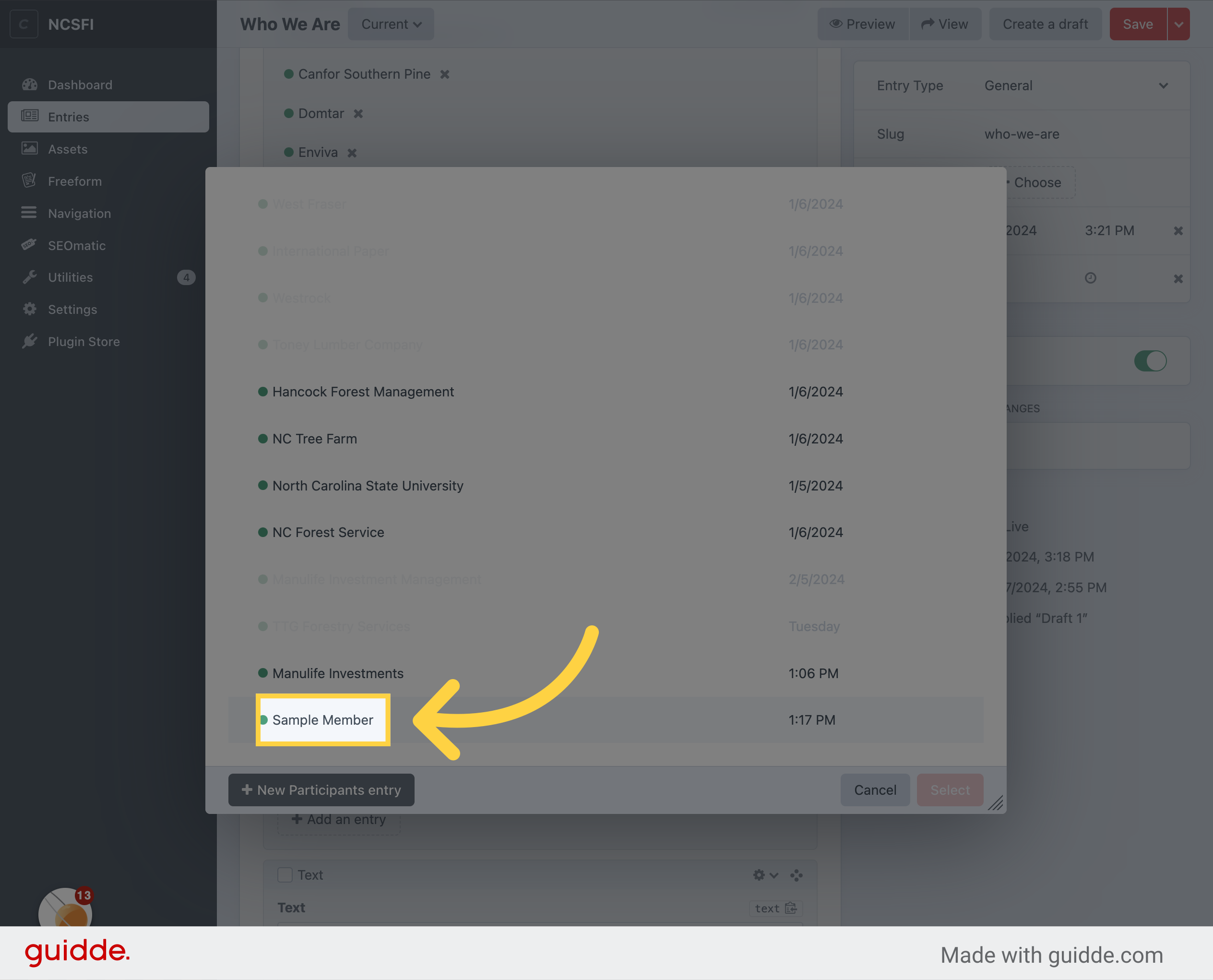
13. Select Your Logo
Select your logo
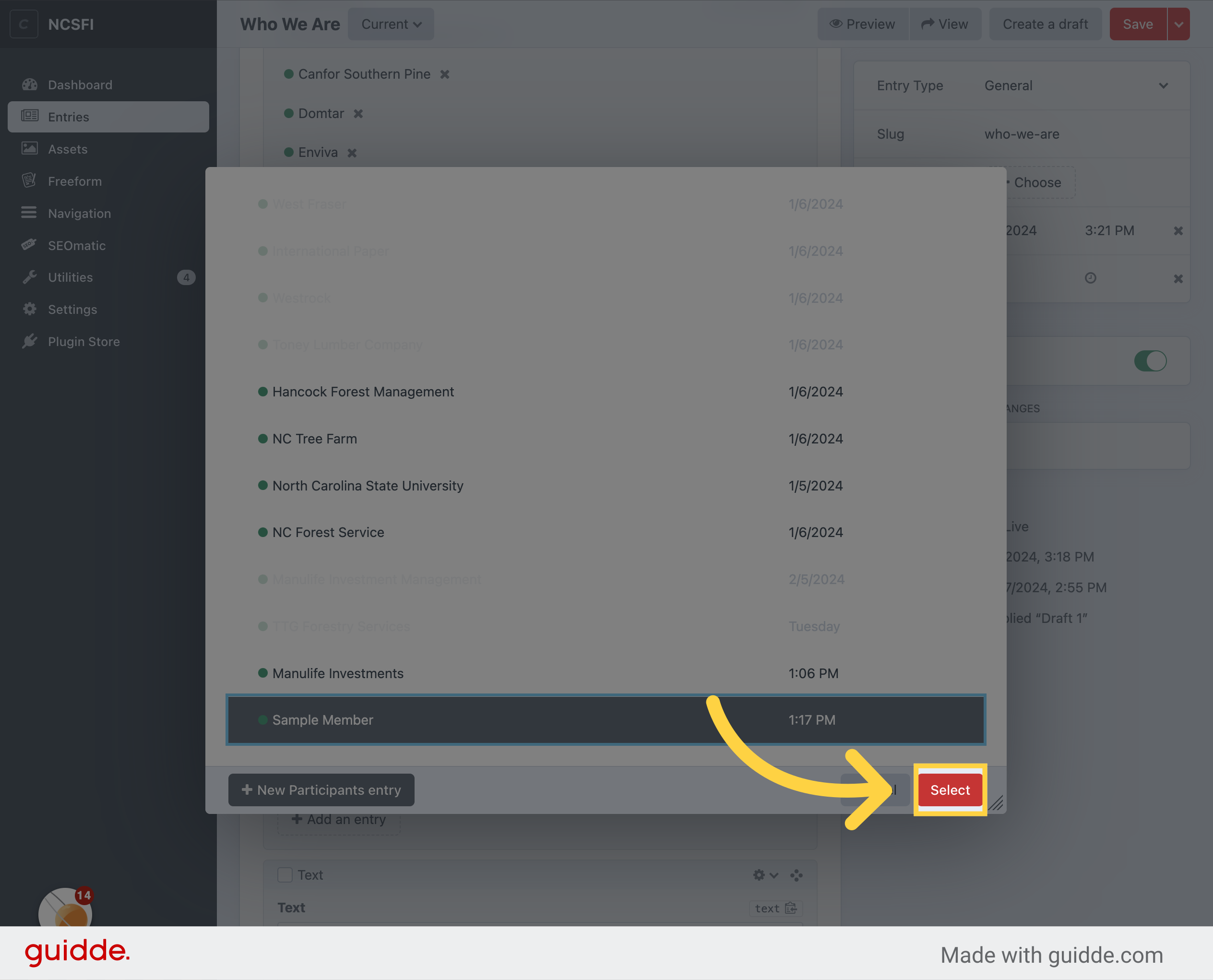
14. Click "Select"
Choose an option.
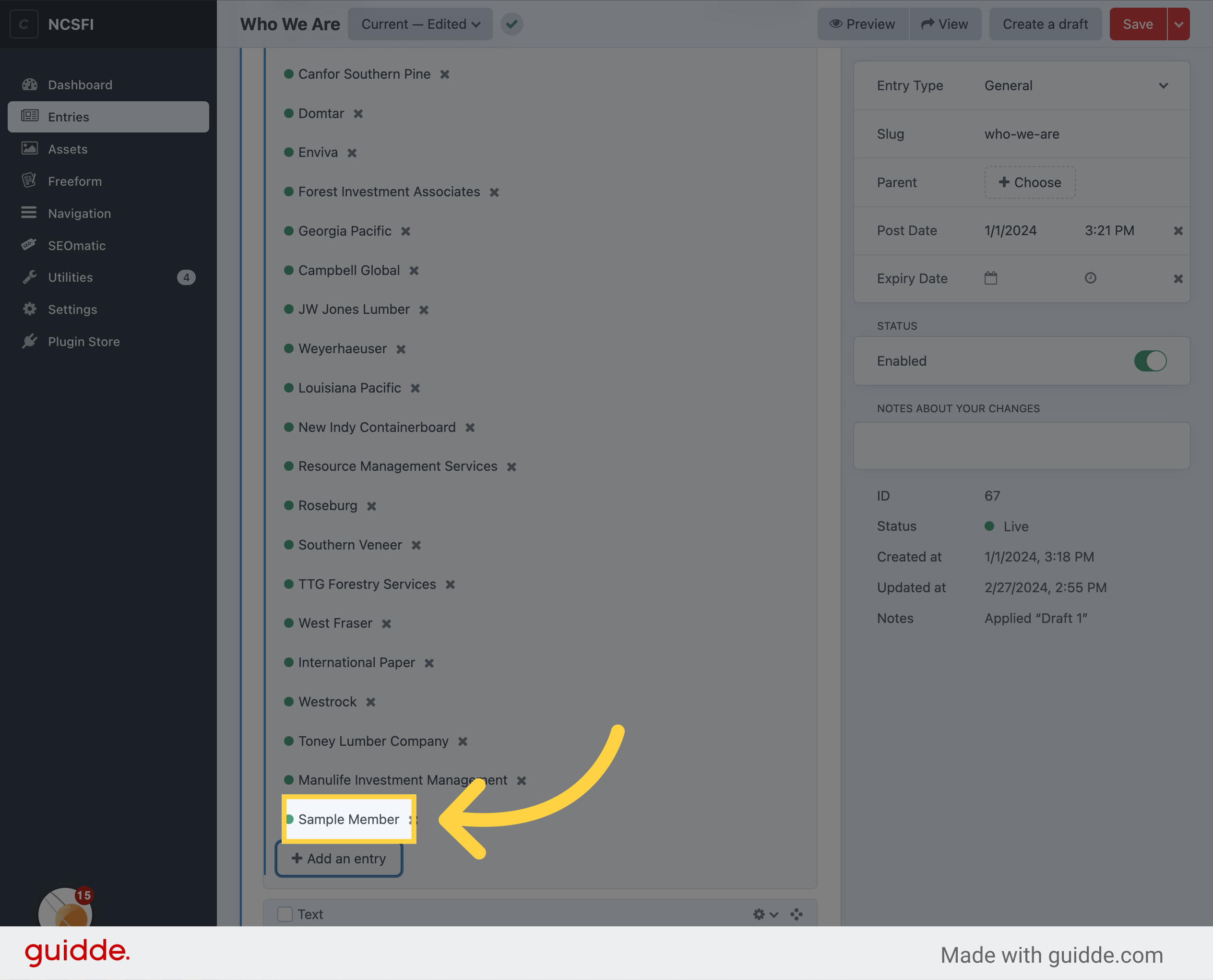
15. Reorder
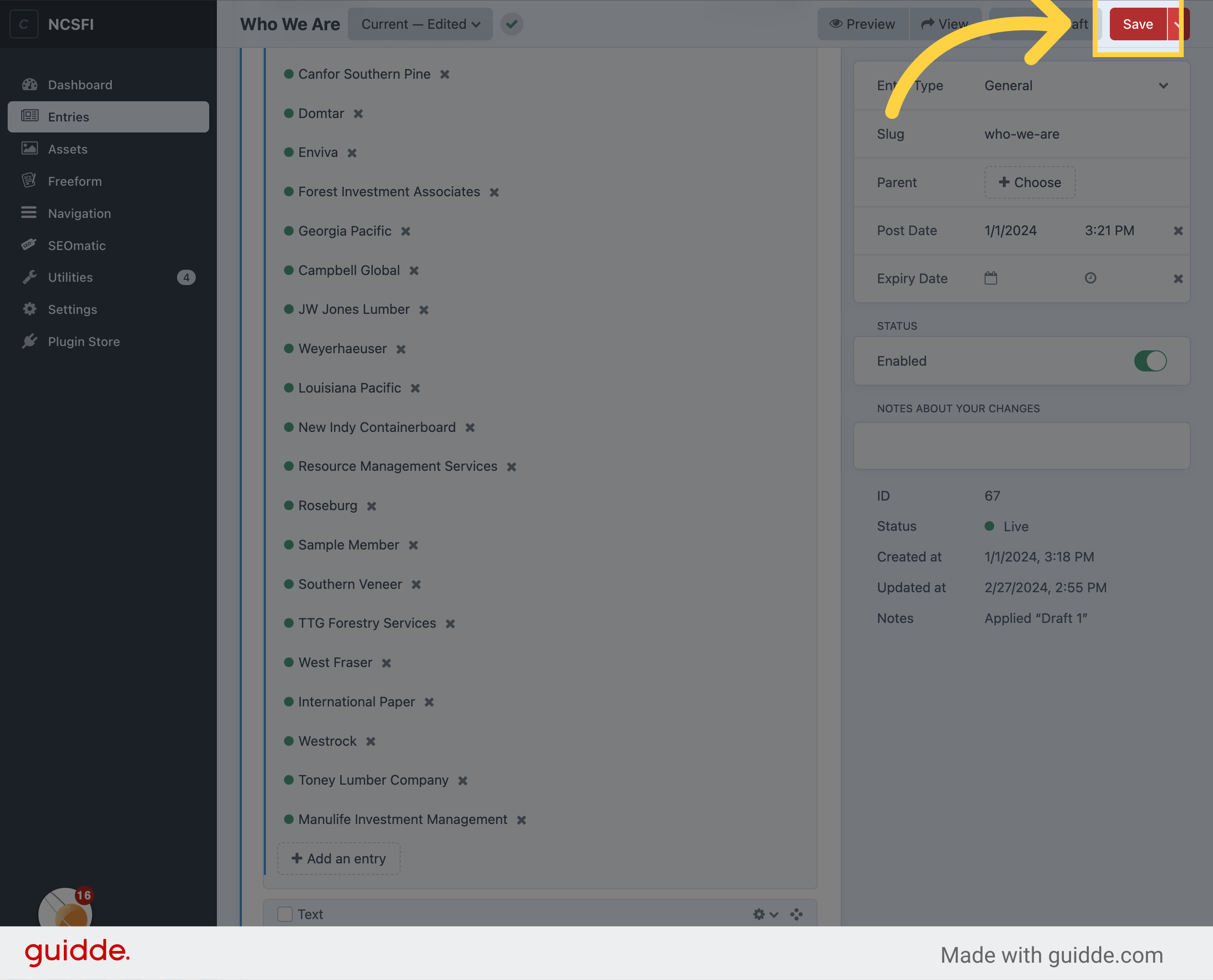
Reorder the logo if needed by clicking and dragging up or down.
16. Click "Save"
Save the changes.